

One tap
Choose an outcome the moment the call ends.
After every call, tag how it went. Outcomes keep your pipeline, dashboard and reports accurate.
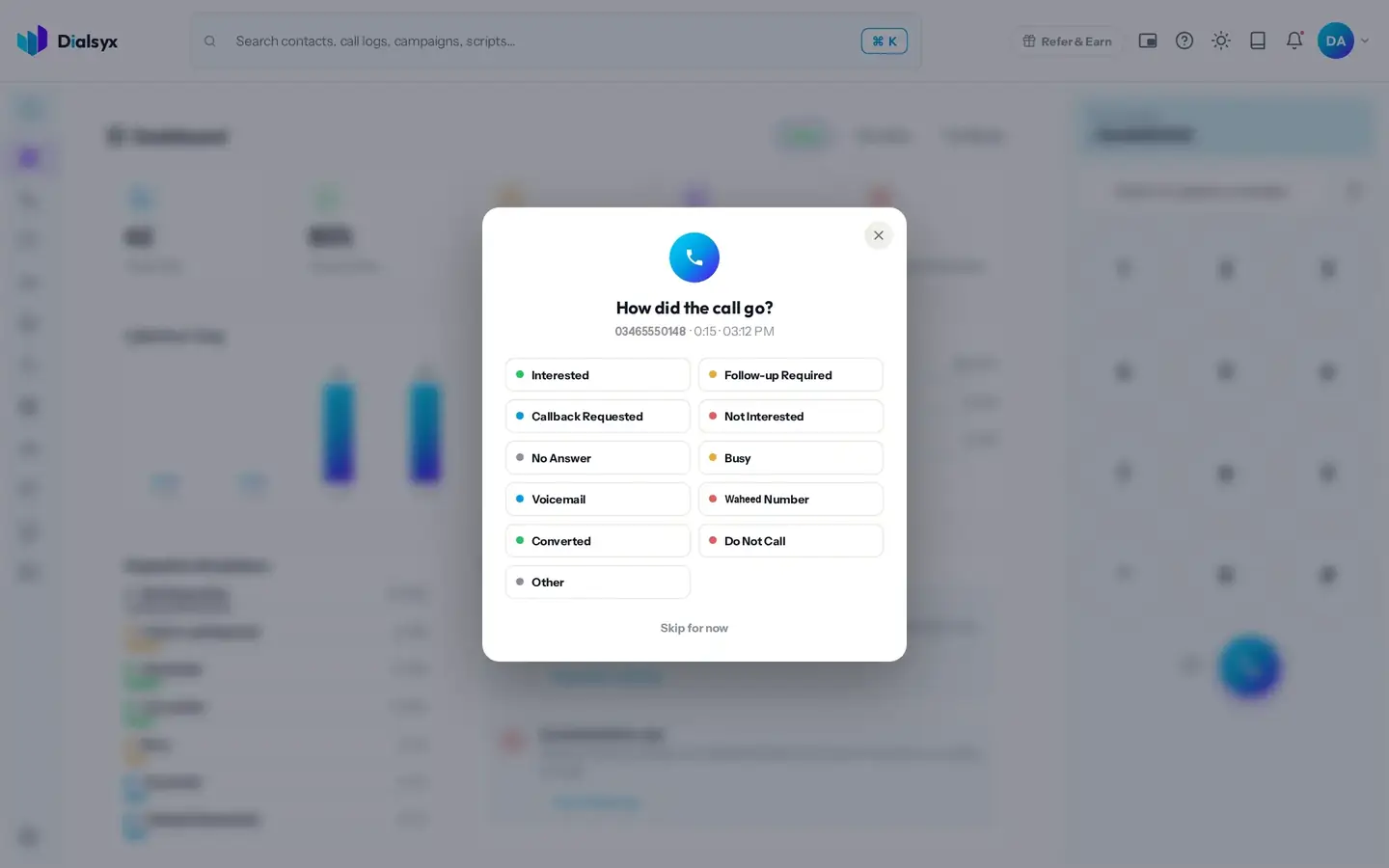
Choose an outcome the moment the call ends.
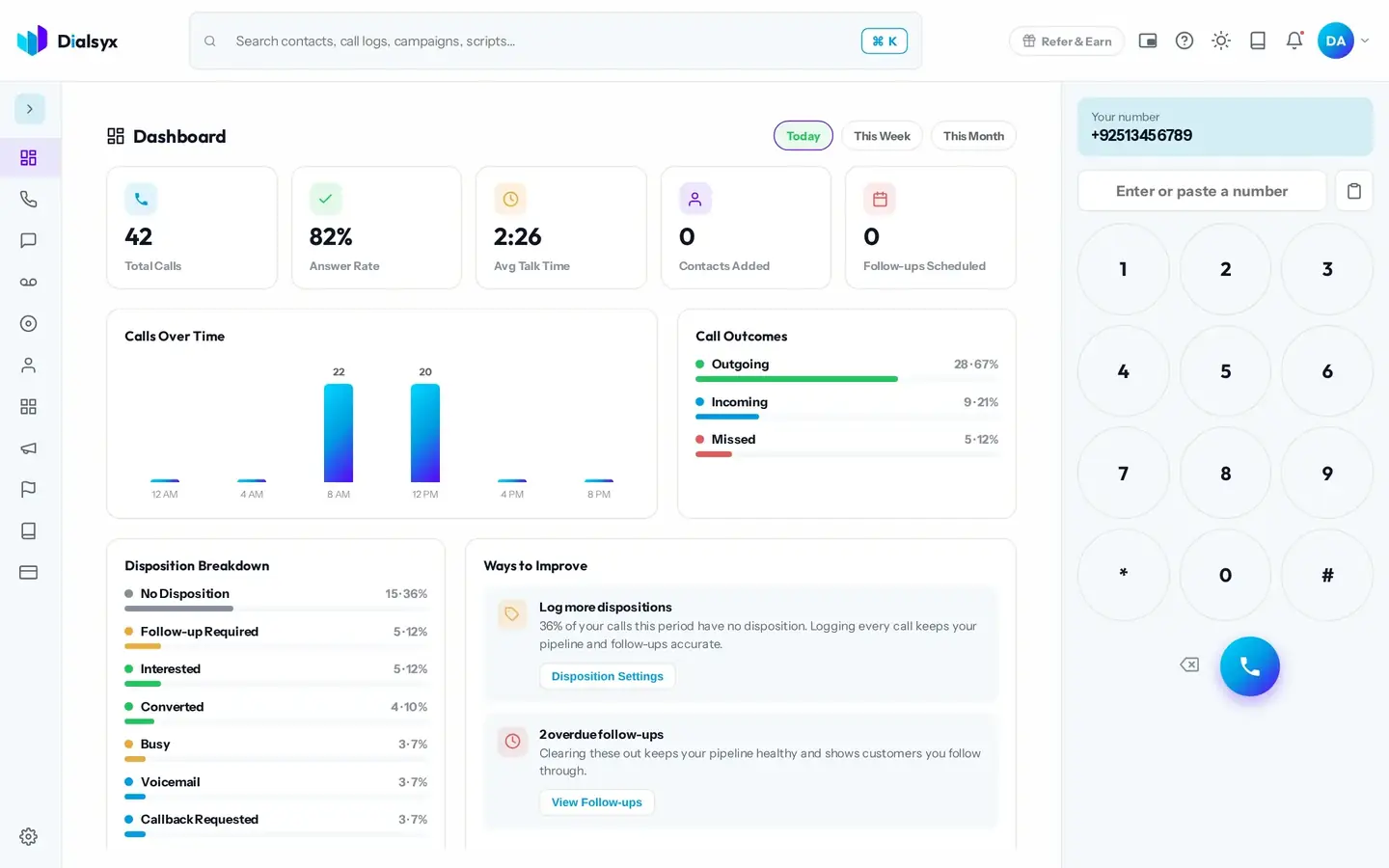
Your dashboard shows how your calls end.
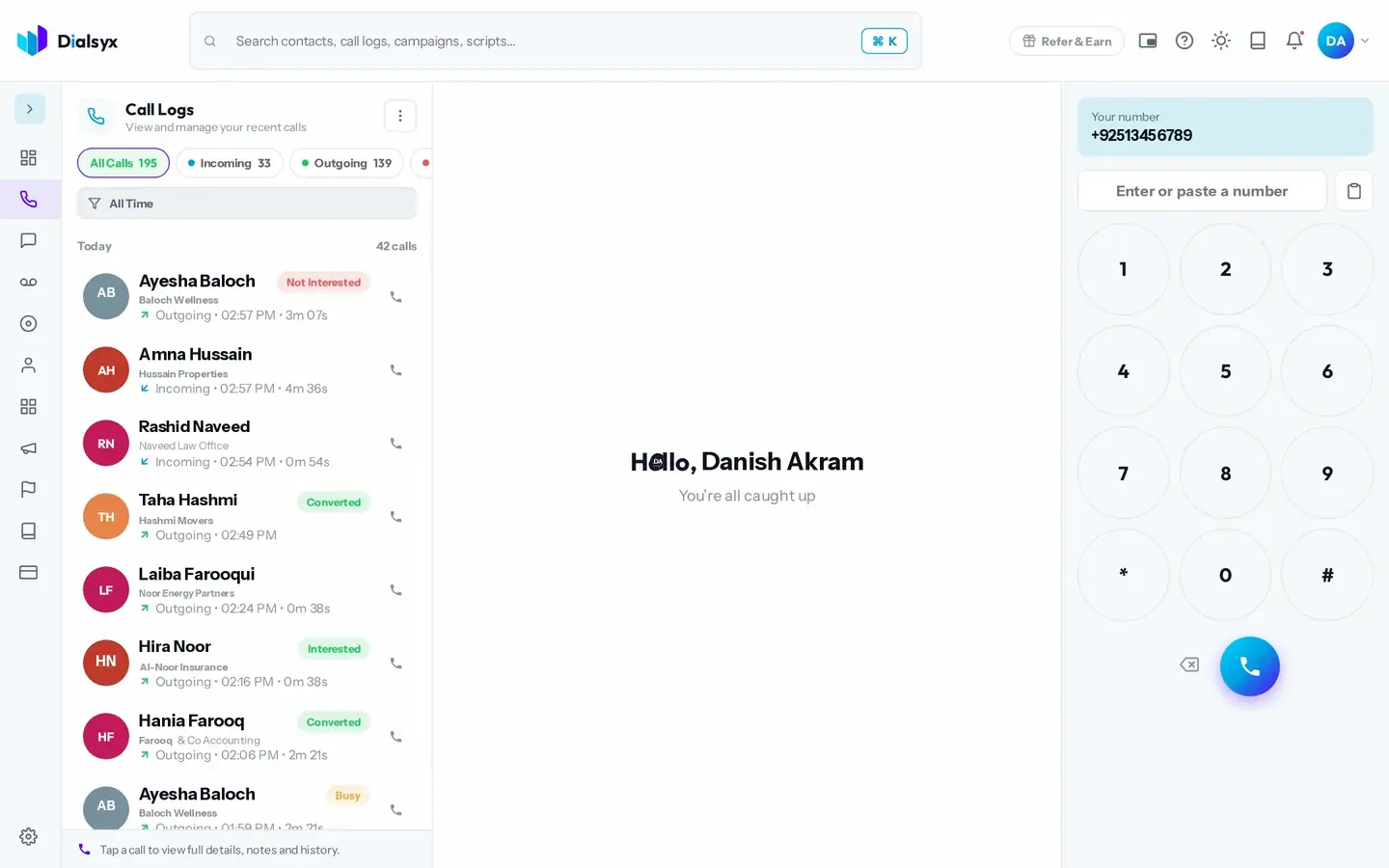
Outcomes keep contacts in the right stage.
Real screens from the Dialsyx dialer.
Pick from a short, clear list.
See how calls end across the day, week or month.
Every call row shows its outcome.
Step-by-step instructions with screenshots.
You can choose which outcomes appear and how they are used in Settings.
Calls without an outcome show as No Disposition, and the dashboard reminds you to log them.
Yes. After approval you can take a trial of a couple of hours or a demo meeting, case by case.
Guides that go with this page.
 What is a cloud phone system? A simple guide for Pakistani businessesA cloud phone system replaces desk phones and wiring with software you open in a browser. Here is how it works, what it costs and who it suits in Pakistan.4 min read
 Browser-based calling: how to make business calls from Chrome with no desk phoneBrowser-based calling lets your team make and take calls from Chrome or Edge. Learn what you need, how it works and how to get good call quality.3 min read
 How much does a business phone system cost in Pakistan?Compare the real cost of desk phones and wiring with a cloud phone system in Pakistan. See typical figures in PKR and a worked example for a five-person team.2 min read